


Hey there! As a supplier of smart mobile TVs, I'm stoked to share with you how to control these nifty devices using a remote. It's super easy once you get the hang of it, and I'll walk you through every step.
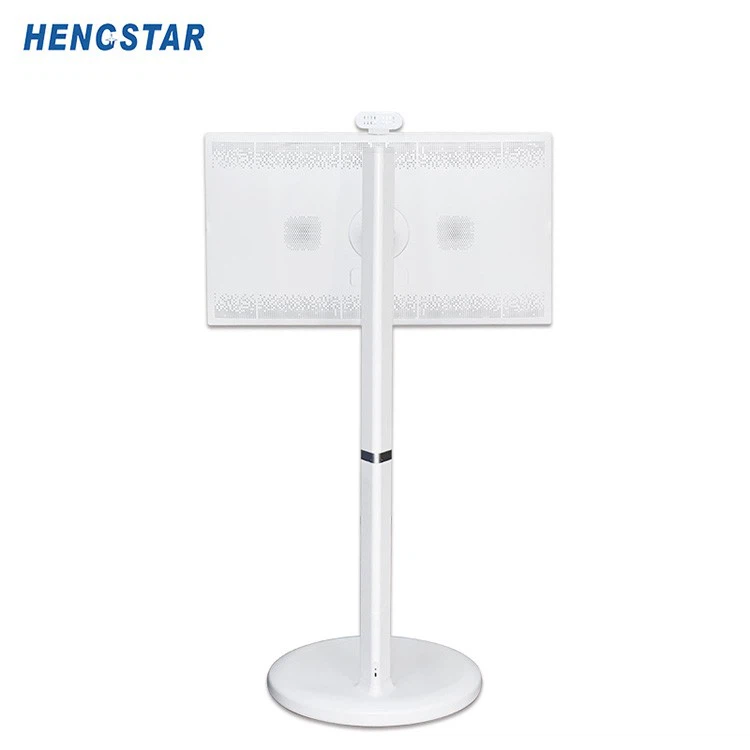
First off, let me tell you a bit about our amazing 32 Inch Smart Mobile TV. This bad boy is packed with features that make it a must - have for any home or office. It's got a sleek design, high - definition display, and of course, it's super easy to control with the included remote.
Unboxing and Setup
When you first get your smart mobile TV, the first thing you'll want to do is unbox it carefully. Make sure you've got all the parts, including the TV, the remote, the power cord, and any other accessories. Once you've got everything out, find a good spot for your TV. It could be on a TV stand in your living room or mounted on the wall.
Next, plug in the power cord and turn on the TV. You'll see a welcome screen. Now, grab your remote. Most remotes these days are pretty intuitive, but there are a few things you need to know.
Pairing the Remote
In some cases, you might need to pair the remote with the TV. Usually, this is a breeze. Just turn on the TV and press the "Pair" or "Setup" button on the remote. The TV will detect the remote, and in a few seconds, they'll be paired up. You'll see a confirmation message on the screen.
Basic Controls
Let's start with the basic controls. On the remote, you've got the arrow keys. These are used to navigate through menus. Up and down arrows move the selection up and down the menu, while the left and right arrows move it left and right. The "OK" or "Select" button is used to choose an option. For example, if you're on the home screen and you want to open the app store, use the arrow keys to highlight the app store icon and then press the "OK" button.
The "Back" button is really handy. If you've made a wrong selection or you want to go back to the previous menu, just press this button. It's like a safety net in case you get lost in the menus.
Volume and Channel Controls
The volume controls are usually located on the side or at the bottom of the remote. There are two buttons: one for increasing the volume and one for decreasing it. Simple, right? If you want to mute the TV, there's usually a "Mute" button too.
For channel control, you've got the "Channel Up" and "Channel Down" buttons. Press "Channel Up" to go to the next channel and "Channel Down" to go to the previous one. If you want to jump to a specific channel, you can use the number keys on the remote. Just punch in the channel number, and you're good to go.
Smart Features
Our smart mobile TVs come with a bunch of cool smart features, and the remote makes it easy to access them. For example, the "Home" button takes you straight to the home screen. From there, you can access all your apps, settings, and other features.
There's also a "Settings" button on the remote. Press it, and you'll be able to adjust things like picture quality, sound settings, and network connections. You can change the picture mode from "Standard" to "Cinema" or "Sports" depending on what you're watching.
If you want to stream content from your phone or other devices, you can use the "Screen Mirroring" feature. On the remote, there's usually a dedicated button for this. Once you press it, follow the on - screen instructions to connect your device to the TV.
Troubleshooting
Sometimes, things might not go as smoothly as you'd like. If the remote isn't working, the first thing to check is the batteries. Replace them with fresh ones and see if that solves the problem. If the remote still doesn't work, try unpairing and re - pairing it with the TV.
If you're having trouble with a specific feature, like screen mirroring, make sure your devices are on the same Wi - Fi network. Also, check if the app on your device supports screen mirroring.
Customizing the Remote
Some remotes allow you to customize the buttons. You can assign different functions to certain buttons to make it more convenient for you. For example, you can set a button to directly open your favorite app. To do this, go to the TV's settings, find the "Remote Settings" or "Button Customization" option, and follow the instructions.
Conclusion
Controlling a smart mobile TV with a remote is a piece of cake once you know how. Our 32 Inch Smart Mobile TV is designed to be user - friendly, and the remote makes it even easier to enjoy all the features.
If you're interested in purchasing our smart mobile TVs for your home, office, or any other place, we'd love to hear from you. Whether you're a small business looking to add some digital signage or a family wanting to upgrade your home entertainment system, we've got the perfect solution for you. Get in touch with us to start a purchase discussion, and let's make your viewing experience even better.

References
- User manuals of smart mobile TVs
- Industry knowledge on smart TV technology and remote control systems