


Managing apps on a tablet PC is a crucial aspect of enhancing the user experience and optimizing device performance. As a tablet PC supplier, I understand the significance of providing users with effective strategies for app management. In this blog post, I will share some valuable insights and practical tips on how to manage apps on a tablet PC efficiently.
Understanding Your Tablet's App Ecosystem
Before delving into app management techniques, it's essential to have a basic understanding of your tablet's app ecosystem. Different tablet operating systems, such as Android and iOS, have their own app stores and management mechanisms. Android tablets typically use the Google Play Store, while iOS devices rely on the App Store. Familiarize yourself with the features and functions of your tablet's app store to make the most of its capabilities.
Organizing Your App Library
One of the first steps in app management is organizing your app library. A cluttered home screen can make it difficult to find the apps you need quickly. Here are some tips for organizing your apps:
- Create folders: Group similar apps together into folders. For example, you can create folders for productivity apps, entertainment apps, social media apps, and so on. This will help you keep your home screen tidy and make it easier to locate specific apps.
- Use categories: Most tablet operating systems allow you to categorize your apps. Take advantage of this feature to further organize your app library. You can create custom categories or use the pre - defined ones provided by the system.
- Arrange apps by frequency of use: Place the apps you use most frequently on the home screen or in easily accessible folders. This will save you time when you need to open these apps.
Installing and Uninstalling Apps
Installing and uninstalling apps is a fundamental part of app management. Here's how you can do it effectively:
- Installing apps: To install an app, open your tablet's app store and search for the app you want. Once you find it, click the "Install" button. The app will be downloaded and installed on your tablet automatically. Make sure your tablet is connected to the internet during the installation process.
- Uninstalling apps: If you no longer need an app, uninstalling it can free up valuable storage space on your tablet. To uninstall an app, long - press the app icon on the home screen or in the app library. A menu will appear, and you can select the "Uninstall" option. Confirm the uninstallation, and the app will be removed from your tablet.
Managing App Permissions
App permissions are settings that determine what an app can access on your tablet, such as your contacts, camera, and location. Managing app permissions is important for your privacy and security. Here's how you can do it:
- Review app permissions: When you install an app, it will usually request certain permissions. Review these permissions carefully and only grant the ones that are necessary for the app to function properly. For example, if a photo - editing app asks for access to your contacts, it's probably not necessary, and you can deny the permission.
- Change app permissions: You can also change app permissions after an app has been installed. On Android tablets, go to "Settings" > "Apps & notifications" > select the app > "Permissions". On iOS devices, go to "Settings" > select the app and adjust the permissions accordingly.
Updating Apps
Keeping your apps up - to - date is essential for security, performance, and access to new features. Here's how you can manage app updates:
- Automatic updates: Most tablet operating systems allow you to enable automatic app updates. This means that your apps will be updated in the background whenever a new version is available. To enable automatic updates on Android, go to "Google Play Store" > Menu > "Settings" > "Auto - update apps" and select the option that suits you. On iOS, go to "Settings" > "App Store" and toggle on "App Updates".
- Manual updates: If you prefer to update apps manually, you can do so by opening the app store and checking for available updates. In the app store, look for the "Updates" tab. Here, you can see a list of apps that have updates available. Click the "Update" button next to each app to update them.
Using App Management Tools
There are several app management tools available that can help you manage your apps more efficiently. These tools can provide features such as app backup, storage analysis, and app optimization. Some popular app management tools for Android tablets include App Manager, SD Maid, and Clean Master. For iOS devices, there are also third - party tools like iMazing that can assist with app management.
Optimizing App Performance
Optimizing app performance can enhance your overall tablet experience. Here are some tips for optimizing app performance:
- Close unused apps: Running multiple apps in the background can slow down your tablet. Close any apps that you're not currently using. On Android tablets, you can do this by swiping up on the recent apps screen. On iOS devices, double - click the Home button (or swipe up from the bottom of the screen on devices without a Home button) and swipe away the apps you want to close.
- Clear app cache: App cache is temporary data that apps store on your tablet to improve performance. However, over time, the cache can become large and take up a significant amount of storage space. You can clear the app cache on Android by going to "Settings" > "Apps & notifications" > select the app > "Storage" > "Clear cache". On iOS, the system manages app cache automatically, but you can reset the app to clear its data if necessary.
Considering Specialized Tablets and Their App Management
If you're using specialized tablets, such as those with LCD Panel Kits, Waterproof LCD Display, or Touch Panel PC Windows Embedded, app management may have some unique considerations.
For tablets with LCD panel kits, make sure the apps you install are compatible with the display resolution and capabilities of the LCD panel. Some high - end LCD panels may support more advanced graphics and visual features, and you can take advantage of this by installing apps that are optimized for such displays.
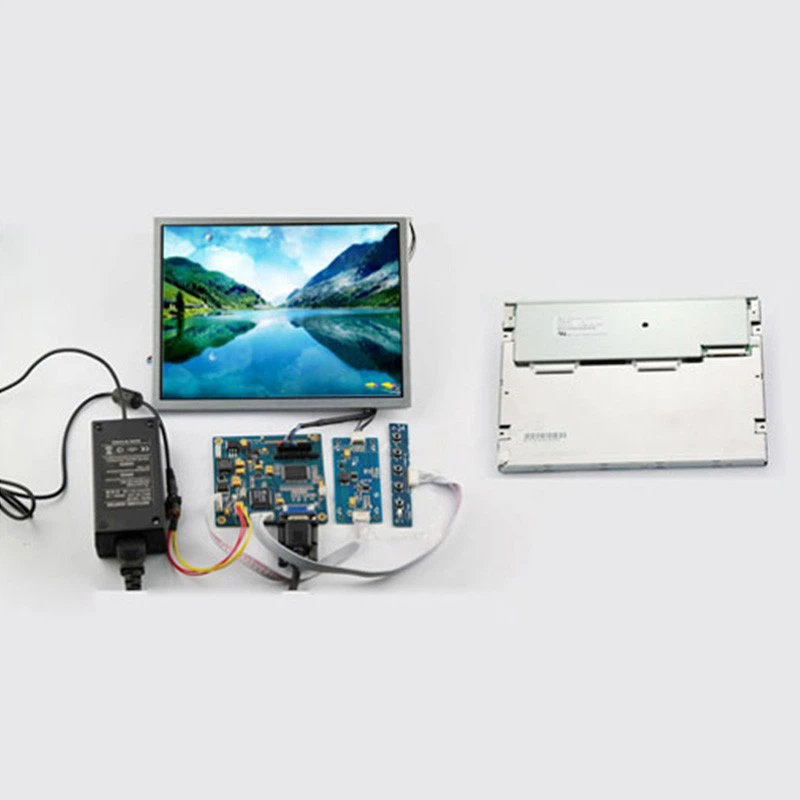

Waterproof LCD display tablets are often used in outdoor or harsh environments. When managing apps on these tablets, you may need to pay more attention to battery consumption, as the display may require more power. Also, ensure that the apps you install are suitable for use in outdoor conditions, such as weather - resistant mapping apps or ruggedized productivity apps.
Touch Panel PC Windows Embedded tablets offer a different operating system environment. App management on these tablets may involve using the Windows - specific app management tools and techniques. You can manage app installations through the Windows Store or other software distribution channels, and you may need to be more cautious about security and compatibility when installing third - party apps.
Conclusion
Managing apps on a tablet PC is a multi - faceted process that involves organizing your app library, installing and uninstalling apps, managing permissions, updating apps, and optimizing performance. By following the tips and strategies outlined in this blog post, you can ensure that your tablet runs smoothly, your apps function properly, and you have a better overall user experience.
As a tablet PC supplier, we are committed to providing you with high - quality tablets and the support you need to manage your apps effectively. If you have any questions about app management or are interested in purchasing our tablets, please feel free to contact us for further discussion and procurement negotiations. We look forward to serving you and helping you make the most of your tablet PC.
References
- Android Developers: Android App Permissions Guide
- Apple Support: Managing App Permissions on iOS
- Tablet PC User Manuals (various models)