


Hey there, tech enthusiasts! If you're like me, you're always on the lookout for the latest and greatest in home entertainment. And let me tell you, smart mobile TVs are where it's at right now. As a supplier of these nifty gadgets, I've helped a ton of folks set up their own smart mobile TVs, and I'm here to share my tips and tricks with you.
Why Choose a Smart Mobile TV?
First off, let's talk about why a smart mobile TV is such a great addition to your home. Unlike traditional TVs, smart mobile TVs come with built - in Wi - Fi and internet connectivity. This means you can stream your favorite shows and movies from platforms like Netflix, Hulu, and Amazon Prime Video right on your TV, without the need for an extra streaming device.
They're also super portable. You can move them from room to room as you please, or even take them outside for a backyard movie night. Plus, with features like voice control and app integration, they offer a more personalized and interactive viewing experience.
What You'll Need
Before you start setting up your smart mobile TV, you'll need to gather a few things:
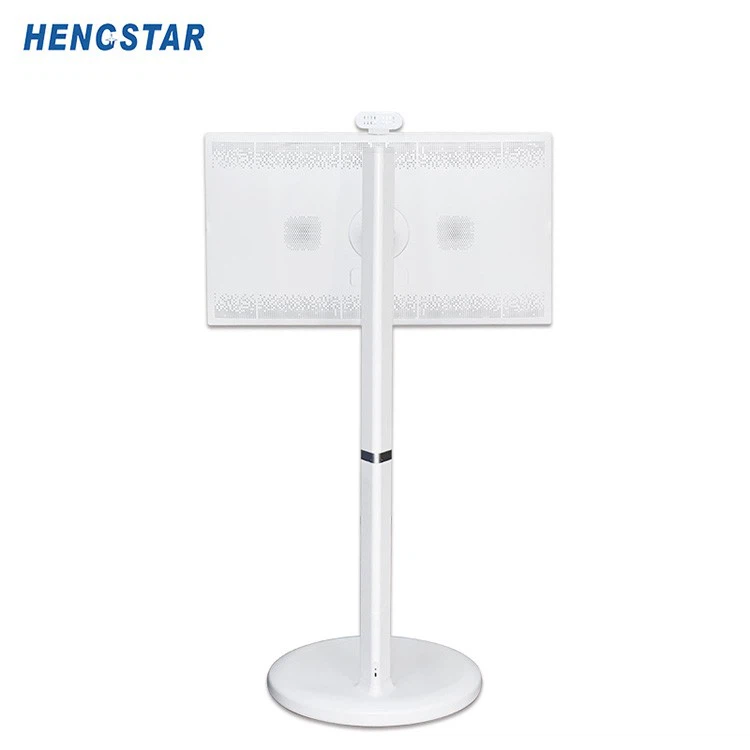
- The TV Itself: Of course, you can't set up a smart mobile TV without the TV. I highly recommend checking out our 32 Inch Smart Mobile TV. It's got a great picture quality and all the smart features you'd want.
- Power Cord: Every TV needs power, so make sure you have the power cord that came with your TV.
- HDMI Cables: If you want to connect external devices like a gaming console or a Blu - ray player, you'll need HDMI cables.
- A Stable Wi - Fi Connection: Since your smart mobile TV will rely on the internet for streaming and other features, a strong and stable Wi - Fi connection is a must.
Step - by - Step Setup Guide
Step 1: Unboxing and Placement
Once you've got all your stuff ready, it's time to unbox your TV. Be careful when you're taking it out of the box, as TVs can be fragile. Find a good spot for your TV. Make sure it's on a stable surface and at a comfortable viewing height. You don't want to be straining your neck while watching your favorite shows.
Step 2: Connect the Power
Plug the power cord into the back of the TV and then into a power outlet. Turn on the TV using the power button on the TV itself or on the remote control.
Step 3: Connect to Wi - Fi
Most smart mobile TVs will prompt you to connect to Wi - Fi as soon as you turn them on. Select your Wi - Fi network from the list of available networks on the TV's screen. Then, enter your Wi - Fi password. If you're having trouble connecting, make sure your Wi - Fi router is working properly and that you're entering the correct password.
Step 4: Set Up Your Account
Many smart TV platforms require you to set up an account. For example, if you want to use Netflix on your TV, you'll need to log in to your Netflix account. You can usually do this by going to the app store on your TV, downloading the app, and then following the on - screen instructions to log in.
Step 5: Connect External Devices
If you want to connect external devices like a gaming console or a Blu - ray player, use the HDMI cables. Plug one end of the HDMI cable into the HDMI port on the external device and the other end into an available HDMI port on the TV. Then, use the TV's input button on the remote to select the correct input source.

Step 6: Customize Your Settings
Now that everything is connected, it's time to customize your TV settings. You can adjust the picture quality, sound settings, and other features according to your preferences. For example, you can choose between different picture modes like "Standard", "Movie", or "Sports" to get the best viewing experience for the content you're watching.
Troubleshooting Common Issues
Even with the best setup, you might run into some issues. Here are a few common problems and how to fix them:
- Wi - Fi Connection Problems: If your TV can't connect to Wi - Fi, try restarting your TV and your Wi - Fi router. You can also try moving your TV closer to the router to get a stronger signal.
- App Not Working: If an app isn't working properly, try closing the app and reopening it. If that doesn't work, you can try uninstalling and reinstalling the app from the app store on your TV.
- Poor Picture Quality: If the picture quality isn't great, check your TV's picture settings. You can also make sure that your TV is set to the correct resolution for the content you're watching.
Conclusion
Setting up a smart mobile TV might seem a bit daunting at first, but it's actually a pretty straightforward process. With the right tools and a little bit of patience, you'll be enjoying your favorite shows and movies in no time.
If you're interested in getting your own smart mobile TV, or if you have any questions about the setup process, don't hesitate to reach out. We're here to help you make the most of your home entertainment experience. Whether you're a casual viewer or a hardcore techie, a smart mobile TV is a great investment.
References
- Various user manuals of smart mobile TVs.
- Tech blogs and forums discussing smart TV setup and usage.